
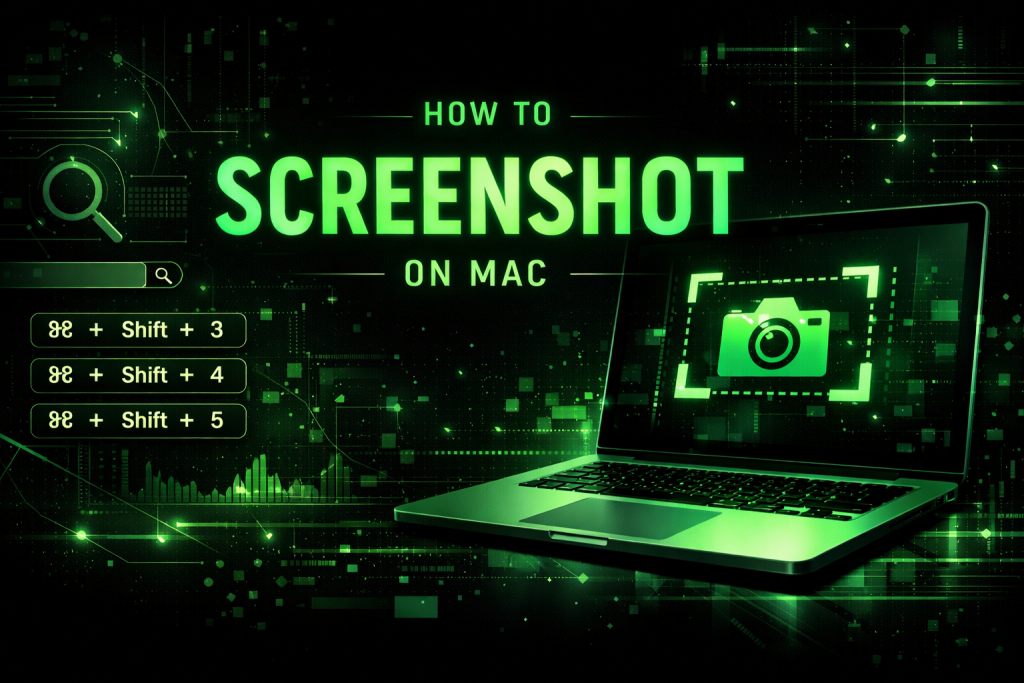
The persistence of “how to screenshot on Mac” is not a UX failure, nor a beginner problem. This query does not trend because something changed. It persists because people’s situations change. Screenshots are needed intermittently, often under mild pressure, and rarely often enough to become muscle memory.
What activates the search
This question resurfaces in highly repeatable contexts:
-
A new Mac at work or school
-
A macOS update that subtly shifts expectations
-
Remote work (errors, dashboards, receipts, instructions)
-
Education (submissions, proof, visual explanations)
-
Content creation (tutorials, guides, social posts)
In all cases, the trigger is the same:
“I need to capture what’s on my screen right now, and I don’t want to guess.”
The real intent behind the query
People are not asking how screenshots work.
They are asking:
-
Which keys do I press?
-
Did I remember this correctly?
-
Where did the image go?
This is procedural recall under time pressure — often with someone waiting on the other end.
The minimal information that resolves the need
Anything beyond this is secondary. From a behavioral standpoint, the user wants certainty, fast.
Capture the entire screen
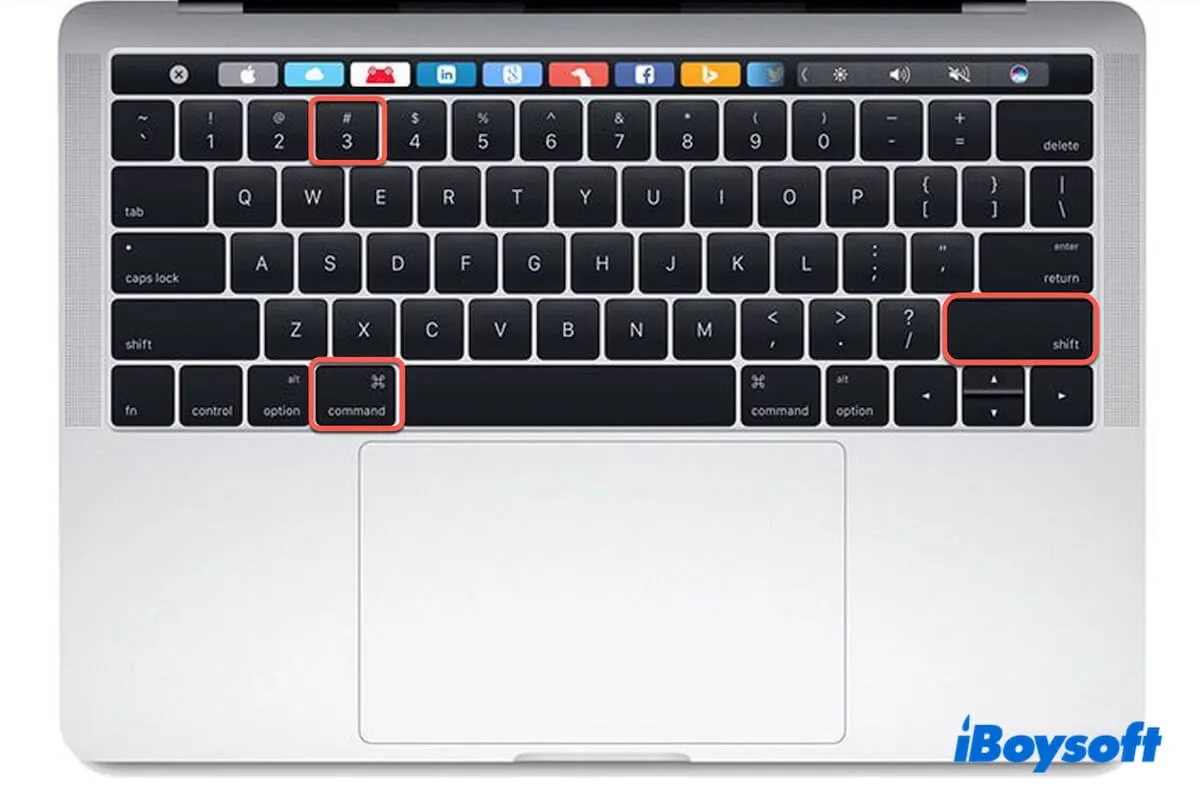
Shortcut:Command (⌘) + Shift + 3
Automatically captures the full screen and saves it (by default) to the desktop.
Capture a selected portion

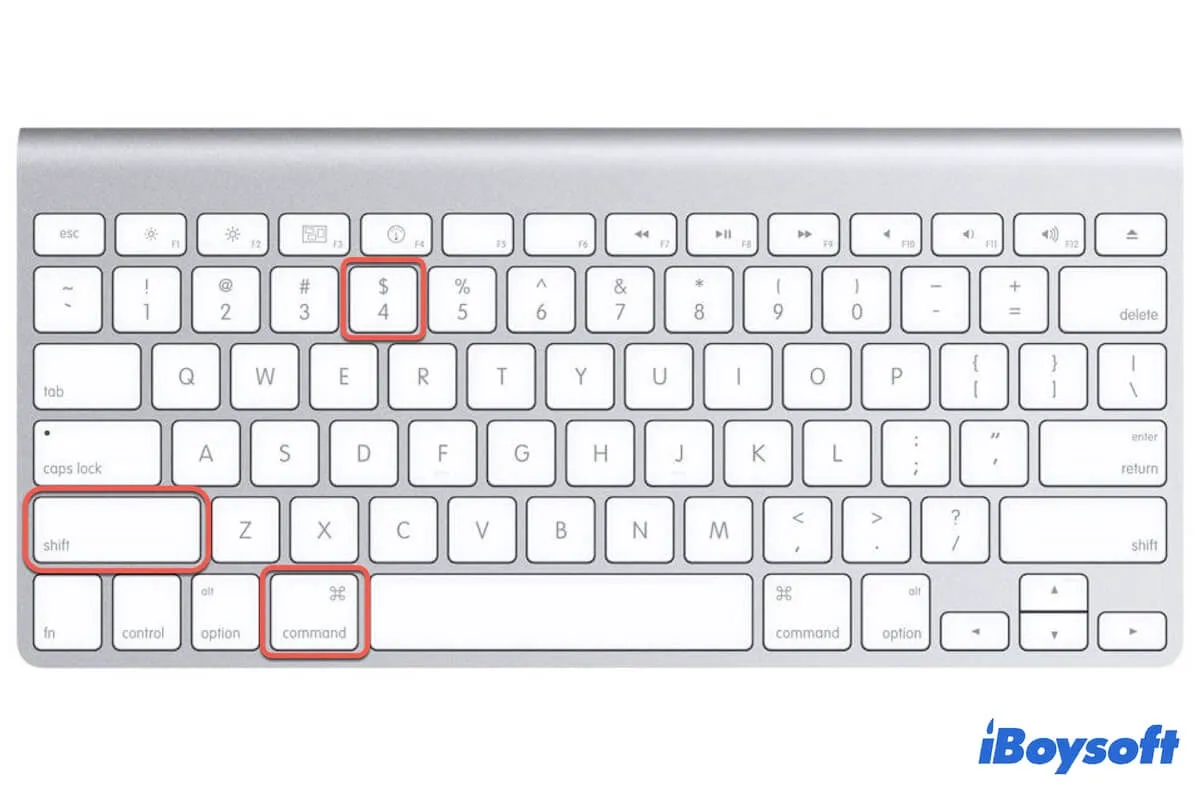
Shortcut:Command (⌘) + Shift + 4
This is the most searched and most forgotten shortcut — and the one most people actually need.
Capture a specific window
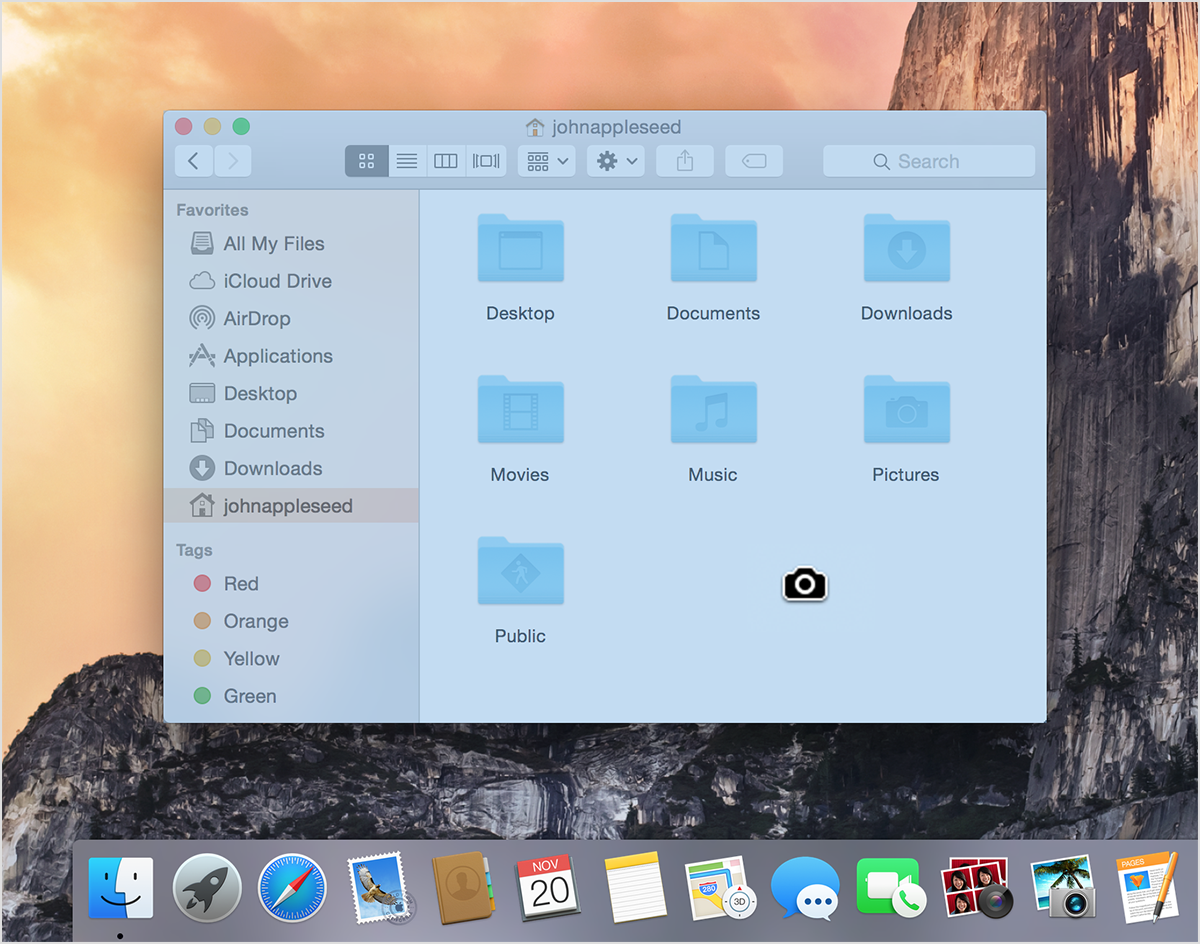

Shortcut:Command (⌘) + Shift + 4, then press Space
Used frequently in work contexts, often discovered only after re-searching.
Open the screenshot toolbar (all options)

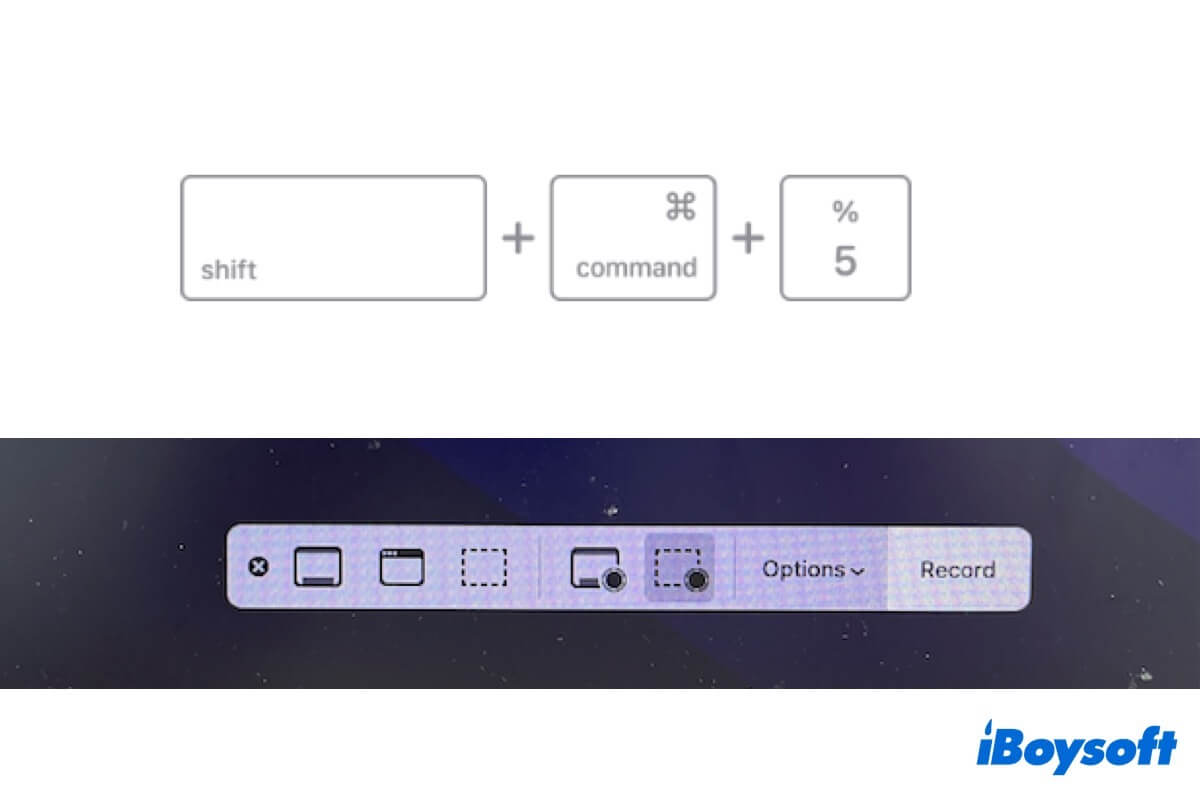
Shortcut:Command (⌘) + Shift + 5
This unified menu (screenshots + screen recording) exists, but many users remain unaware of it for years — reinforcing the recall-based nature of the search.
Where confusion usually appears
Screenshots are saved to the desktop by default.
This becomes a problem when:
-
The desktop is hidden or cluttered
-
Users expect a “Save As” prompt
-
Screenshots are taken during screen sharing
Again, this is not a technical issue — it’s an expectation mismatch.
The emotional layer behind a “simple” query
This search often happens when:
-
Proof is required (error, receipt, assignment)
-
A response is expected quickly
-
The user wants to avoid appearing unprepared
The phrasing stays basic because the need is urgent, not exploratory.
What this search reveals about digital behavior
“How to screenshot on Mac” persists because:
-
Rarely used procedures decay quickly
-
People optimize for certainty over memory
-
Search engines function as just-in-time cognition
This is not about learning once.
It’s about re-accessing confidence at the exact moment it’s needed.
That’s why this question never goes away — and probably never will.